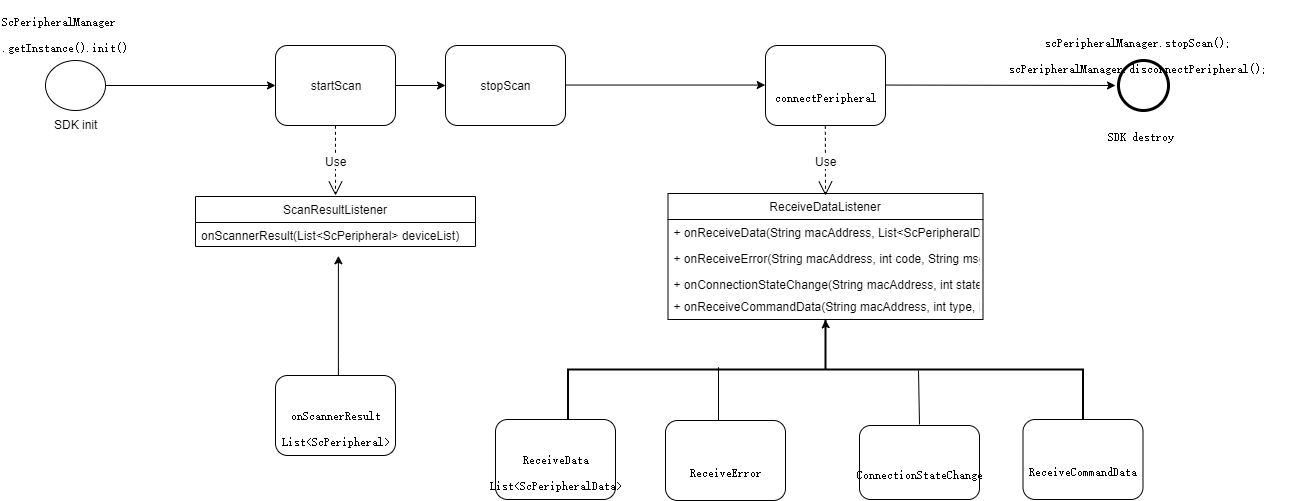
Brief description of SDK process
Demo
https://github.com/iKangtai/ScBluetoothSdkDemo_Android.git
Internationalization
English | 中文文档
Access Guide
SDK features
| Function item | Function description |
|---|---|
| Scan for nearby Bluetooth devices | Scan for Bluetooth devices near the phone and refresh the device list every second |
| Connect to Shecare thermometer to synchronize data | Connect the thermometer to synchronize data, set the thermometer temperature unit and time, and get the firmware version |
| Connect Shecare forehead thermometer to synchronize data | Connect the forehead thermometer to synchronize data and get the firmware version number |
| Connect to Shecare fetal heart rate monitor to synchronize data | Connect the forehead thermometer to synchronize data and get the firmware version number |
| Connect Shecare body temperature stickers to synchronize data | Connect the forehead thermometer to synchronize data and get the firmware version number |
Integrated SDK
1.The first way
Add the new maven warehouse address of Bluetooth SDK in the buildscript and allprojects sections of the project build.gradle configuration script:1
maven { url 'https://dl.bintray.com/ikangtaijcenter123/ikangtai' }
Add the statistics SDK library dependency in the dependencies section of the project App corresponding build.gradle configuration script:1
implementation 'com.ikangtai.buletoothsdk:ScBuletoothLib:1.1.6'
2.The second way,to copy the SDK aar file to the app/libs/ directory of the project, and then configure gradle1
2
3
4
5
6
7
8
9
10
11android {
repositories {
flatDir {
dirs 'libs'
}
}
}
dependencies {
implementation(name: 'scbluetoothlib-release-v1.1.6', ext: 'aar')
}
3.The third way,to copy the ScBluetoothLib module configuration of Demo to the project, and then add the implementation project (‘:ScBluetoothLib’) to establish the dependency
Permission granted
The SDK requires the host APP to grant the following permissions:
| Permission | Use |
|---|---|
| BLUETOOTH | Permission required to connect to Bluetooth devices |
| BLUETOOTH_ADMIN | Permission required to connect to Bluetooth devices |
| ACCESS_COARSE_LOCATION | From the perspective of security and power consumption in Android 7.0, BLE scanning is tied to location permissions |
| ACCESS_FINE_LOCATION | From the perspective of security and power consumption in Android 7.0, BLE scanning is tied to location permissions |
| READ_EXTERNAL_STORAGE | Read and write log files |
| WRITE_EXTERNAL_STORAGE | Read and write log files |
An example of the AndroidManifest.xml manifest file is given below:1
2
3
4
5
6
7
8<manifest ……>
<uses-permission android:name="android.permission.BLUETOOTH" />
<uses-permission android:name="android.permission.BLUETOOTH_ADMIN" />
<uses-permission android:name="android.permission.ACCESS_COARSE_LOCATION"/>
<uses-permission android:name="android.permission.ACCESS_FINE_LOCATION" />
<uses-permission android:name="android.permission.READ_EXTERNAL_STORAGE" />
<uses-permission android:name="android.permission.WRITE_EXTERNAL_STORAGE" />
<application ……>
Init SDK
Before using the SDK, you need to call the init function in the host application UI thread, and the related callback functions will also be in the UI thread:1
ScPeripheralManager.getInstance().init(getContext());
Scan for nearby Bluetooth devices
The scanning method is a continuous process. The latest device list is returned every second. You need to manually call scPeripheralManager.stopScan() after the scan is completed.1
2
3
4
5
6
7
8
9
10
11
12
13
14
15
16
17
18
19
20
21
22
23
24
25
26
27
28
29
30
31
32
33
34
35
36
37
38
39 if (!checkBleFeatures()) {
return;
}
scPeripheralManager.startScan(new ScanResultListener() {
/**
* When scanning nearby devices, call back the device list through this method.
* The method call will be triggered once per second until called the stopScanDevice method.
* @param deviceList
*/
public void onScannerResult(List<ScPeripheral> deviceList) {
}
});
```
Before starting to scan, you need to check the location service switch above 6.0, the location permission of the system above 6.0, and the Bluetooth switch. For specific implementation methods, please see checkBleFeatures() in Demo:
```java
private boolean checkBleFeatures() {
//Check Bluetooth Location Service
if (!BleTools.isLocationEnable(getContext())) {
Intent locationIntent = new Intent(Settings.ACTION_LOCATION_SOURCE_SETTINGS);
startActivityForResult(locationIntent, REQUEST_LOCATION_SETTINGS);
return false;
}
//Check Bluetooth location permission
if (!BleTools.checkBlePermission(getContext())) {
XXPermissions.with(getActivity())
.permission(Permission.Group.LOCATION)
.request(callback);
return false;
}
//Check the Bluetooth switch
if (!BleTools.checkBleEnable()) {
Intent intent = new Intent(BluetoothAdapter.ACTION_REQUEST_ENABLE);
startActivityForResult(intent, REQUEST_BLE_SETTINGS_CODE);
return false;
}
return true;
}
Connect Bluetooth device
1 | ReceiveDataListenerAdapter receiveDataListenerAdapter = new ReceiveDataListenerAdapter() { |
Disconnect manually after use to release resources.
1 | scPeripheralManager.stopScan(); |
Interact with the device
The command is called by scPeripheralManager.sendPeripheralCommand(macAddress, BleCommand), and the result of the sending command will be received in ReceiveDataListener.onReceiveCommandData(String macAddress, int type, boolean state, String value).
Get device temperature data1
scPeripheralManager.sendPeripheralCommand(macAddress, BleCommand.GET_DEVICE_DATA);
Synchronize the system time to the device
1 | scPeripheralManager.sendPeripheralCommand(macAddress, BleCommand.SYNC_TIME); |
Modify the device temperature ℃ unit
1 | scPeripheralManager.sendPeripheralCommand(macAddress, BleCommand.SYNC_THERMOMETER_UNIT_C); |
Modify the device temperature ℉ unit
1 | scPeripheralManager.sendPeripheralCommand(macAddress, BleCommand.SYNC_THERMOMETER_UNIT_F); |
List of commands supported by the SDK:
| Type | Description |
|---|---|
| SEND_TEMP_ACK = -1 | Send the number of received temperature commands; externally unavailable (sdk internally processed) |
| SYNC_THERMOMETER_UNIT_C = 0 | The thermometer unit is set to Celsius |
| SYNC_THERMOMETER_UNIT_F = 1 | The thermometer unit is set to Fahrenheit |
| SYNC_TIME = 2 | Synchronize system time to thermometer |
| GET_TIME = 3 | Get the thermometer time |
| GET_POWER = 4 | Get the thermometer battery |
| GET_FIRMWARE_VERSION = 5 | Get the firmware version number of the thermometer |
| GET_DEVICE_DATA = 6 | Get the data in the thermometer (can only get it once) |
| GET_EWQ_FIRMWARE_VERSION = 7 | Get the version number of the forehead thermometer |
| GET_THERMOMETER_UNIT = 8 | get the thermometer unit |
| SET_THERMOMETER_MODE = 9 | set thermometer mode |
| GET_THERMOMETER_MODE = 10 | get thermometer mode |
| GET_THERMOMETER_MEASURE_TIME = 11 | Get the temperature measurement time of the thermometer |
| SET_THERMOMETER_MEASURE_TIME1 = 12 | set the temperature measurement time1 of the thermometer |
| SET_THERMOMETER_MEASURE_TIME2 = 13 | set the temperature measurement time2 of the thermometer |
| CLEAR_THERMOMETER_DATA = 14 | Clear thermometer data |
| GET_DEVICE_HISTORY_DATA = 15 | Get historical data of clinical thermometer |
| SEND_HISTORY_DATA_ACK = 16 | send historical data of clinical thermometer ack |
| SYNC_THERMOMETER_UNIT = 17 | sync the thermometer unit |
| THERMOMETER_OTA_UPGRADE = 18 | device ota upgrade |
| GET_THERMOMETER_OAD_IMG_TYPE = 19 | get device oad img type |
| THERMOMETER_OAD_UPGRADE = 20 | device oad upgrade |
| IFEVER_DEVICE_VERIFY = 21 | ifever device Verify |
The thermometer supports the instruction set:1
{SEND_TEMP_ACK, SYNC_THERMOMETER_UNIT_C, SYNC_THERMOMETER_UNIT_F, SYNC_TIME, GET_FIRMWARE_VERSION, GET_DEVICE_DATA, SYNC_THERMOMETER_UNIT, GET_POWER, GET_THERMOMETER_OAD_IMG_TYPE, THERMOMETER_OAD_UPGRADE};
Forehead temperature gun supports instruction set:1
{GET_EWQ_FIRMWARE_VERSION, GET_EWQ_DEVICE_DATA}
AKY3 thermometer supports instruction set:1
{SEND_TEMP_ACK, SYNC_TIME, GET_TIME, GET_FIRMWARE_VERSION, GET_DEVICE_DATA, SET_THERMOMETER_MODE, GET_THERMOMETER_MODE, GET_THERMOMETER_MEASURE_TIME, SET_THERMOMETER_MEASURE_TIME1, SET_THERMOMETER_MEASURE_TIME2, CLEAR_THERMOMETER_DATA, GET_DEVICE_HISTORY_DATA, SYNC_THERMOMETER_UNIT, GET_THERMOMETER_UNIT, GET_POWER,THERMOMETER_OTA_UPGRADE};
AKY4 thermometer supports instruction set:1
{SEND_TEMP_ACK, SYNC_TIME, GET_TIME, GET_FIRMWARE_VERSION, GET_DEVICE_DATA, GET_THERMOMETER_MEASURE_TIME, SET_THERMOMETER_MEASURE_TIME1, SET_THERMOMETER_MEASURE_TIME2, CLEAR_THERMOMETER_DATA, GET_DEVICE_HISTORY_DATA, SYNC_THERMOMETER_UNIT, GET_THERMOMETER_UNIT, GET_POWER, THERMOMETER_OTA_UPGRADE};
Fetal Favorite supports instruction set:{}
Body temperature patch supports instruction set:1
2
3
4
5
6
7
8{SYNC_TIME, GET_FIRMWARE_VERSION, GET_DEVICE_DATA, GET_POWER, IFEVER_DEVICE_VERIFY};
```
### Confusion configuration
If your application uses code obfuscation, please add the following configuration to avoid SDK being unavailable due to incorrect obfuscation.
```java
-dontwarn com.ikangtai.bluetoothsdk.**
-keep class com.ikangtai.bluetoothsdk.** {*;}
View log
You can control whether the SDK run debug log is output and the output path by calling the following methods. By default, the SDK run debug log is turned on. The user can manually close it.
You can also filter the “sc-ble-log” Tag through Locat to display SDK specific logs.
1 | /** |
Error code description
Every time the SDK interface is called, a correct or incorrect return code may be obtained. Developers can debug the interface according to the return code information and troubleshoot errors.
| Code | Description |
|---|---|
| -1 | Unknown error, sdk cannot handle the error |
| -2 | macAddress error |
| -3 | The system location switch is not turned on |
| -4 | App lacks location permission |
| -5 | Bluetooth is not turned on |
| -6 | The device does not currently support this command |
| -7 | The device is not connected |
| -8 | The number of currently connected devices exceeds the upper limit (up to 5) |
Q&A
- Why do I receive the onReceveData callback if I did not send the SYNC_DATA command after connecting the thermometer
After the thermometer is successfully connected inside the SDK, it will actively obtain offline data through the “SYNC_DATA command”, call back through onReceveData, and synchronize the system time with the thermometer through the “SYNC_TIME command” after the data is acquired.
- SDK instruction call timing
When the thermometer is not connected, the sending command will directly return an error code. When a command is sent during the connection process, the command in the command queue will be called after the connection is successful. The SDK processes one instruction at a time and sends multiple identical instructions at the same time, and the SDK executes it only once. Send multiple different instructions at the same time, the SDK will be stored in the instruction queue and executed in sequence.
- ACK command
When receiving the temperature data, the SDK needs to reply the “SYNC_ACK command” of the thermometer, and bring the number of the current received. When the synchronized temperature data is greater than 10, it will be divided into a group of 10 data. Normally, this instruction is processed internally by the SDK and no additional processing is required. Sending this command by the SDK may cause repeated temperature data to be received.
If you really want to call the ACK instruction externally, you need to modify Config, new Config.Builder().forceOutsideSendAck(true), and then call scPeripheralManager.sendPeripheralCommand(macAddress, BleCommand.SEND_TEMP_ACK, scPeripheralDataList.size()); - SDK operations need to be in the UI thread
Currently, when the SDK calls back data, it will actively switch to the UI thread
- Failed to set temperature unit, failed to synchronize time
Failed to send instructions is usually because the thermometer is not connected or the connection is unstable. It is recommended to check the SDK log output to troubleshoot the problem.
- The thermometer is always synchronized to repeat the temperature
There are abnormal temperature data in the clinical thermometer, which causes the SDK to process the temperature error. You can contact the SDK provider to carry it, and pay attention to the log file.
SDK introduction
ScPeripheralManager
1 | public class ScPeripheralManager { |